Converting Data to Pervasive.SQL
Introduction
This section will guide you through the steps to take if you are using the DataFlex embedded database and want to start using Pervasive.SQL, i.e., you need to convert your tables from DataFlex to Pervasive.SQL.
Pervasive.SQL has a number of rules and specifications that are different from DataFlex. It is important that you read and understand the issues in this section before you start converting data to Pervasive.SQL.
Setting up Pervasive.SQL Databases
The DataFlex Pervasive.SQL Driver can be configured to operate in database mode or in non-database mode. This is determined by the DATABASE_MODE setting in the driver configuration file DFBTRDRV.INT. Depending on the chosen mode, the way the physical Pervasive.SQL tables are located will be different. This means that the setup in Pervasive Control Center and the conversion process will also be different.
-
In non-database mode, the driver will locate Pervasive.SQL tables by specifying pathnames and/or search paths to the physical data files. It is not necessary to set up databases in Pervasive Control Center.
-
In database mode, the driver will locate Pervasive.SQL tables by specifying a Pervasive.SQL database name. This database must be defined in the Control Center and will determine the location of the physical data files.
When using database mode, it is possible to access Pervasive.SQL secured databases. Database mode is only supported on Pervasive.SQL version V8.5 or later.
Further information on database access mode and Pervasive.SQL secured databases can be found in Pervasive.SQL Database Mode and Security.
Before you can convert to Pervasive.SQL, you must have the metadata files FILE.DDF, FIELD.DDF, and INDEX.DDF available to the driver. New empty DDFs will be created if you create a new database in Pervasive Control Center.
You will find a set of empty DDFs in your DataFlex Usr\New folder. You can copy these if you need a set with empty DDFs.
Before converting to Pervasive.SQL, the driver must know where the DDFs are located. Also, the location where the Pervasive data files (BTR files) are to be created should be known.
-
When running in database mode, the location will be specified by the database name. The location needs to be specified when setting up the database in Control Center.
-
When running in non-database mode, the driver will use the data path of the workspace (DataFlex) or the
DFPATH(DataFlex Console Mode) to determine the location of the BTR and DDF files.
Limitations
The DataFlex Pervasive.SQL Driver also has certain limitations that do not exist when using the embedded DataFlex database.
Aggregate Number of Index Segments
DataFlex supports up to 16 indexes for a table, which may all have a maximum of 16 index segments. This is an aggregate of 256 index segments. The number of segments a Pervasive.SQL table can support depends on the page size of the Pervasive.SQL table. The maximum number of index segments for the maximum page size (4096) is 119 index segments. If you want to convert a DataFlex database table to Pervasive.SQL that uses more than 119 index segments, you’ll have to change your table.
Note that when you convert a DataFlex table to Pervasive.SQL with recnum support, this will consume one index segment.
Placement of Index Segments in Large Records
Pervasive.SQL has a limitation that prohibits you from having information in an index that is located beyond the page size of a Pervasive.SQL table. The DataFlex Pervasive.SQL Driver uses the maximum page size for Pervasive.SQL (4096 bytes). This means that the DataFlex Pervasive.SQL Driver cannot convert this table if you have a field beyond this point that provides a segment of an index. This does not mean that the size of a record in Pervasive.SQL is limited to this size; all it means is that these fields cannot be part of an index.
Note that the limit of the page size might be a little less than 4096 because Pervasive.SQL uses some bytes to store internal information. The number of bytes it takes depends on the number of indexes defined for the table. It will take at least 8 bytes per index.
Check whether the DataFlex Pervasive.SQL Driver has been loaded
Before we can use the driver, we will have to make sure it has been loaded. You can check this by reading the menu options from the Database menu of Database Builder. If the driver has been loaded, you will see a menu item Convert to Pervasive.SQL….
Loading the Driver
If the driver has not been loaded, you can load it now or you can modify the DFINI.CFG file and instruct it to load the driver every time we start up DataFlex. When you want to load it every time DataFlex is being started, add a line to your DFINI.CFG file that reads:
4096=DFBTRDRV
This will instruct DataFlex to load the driver whenever DataFlex is being started. Note that you can have more than one 4096 entry in your DFINI.CFG file.
If you want to load the driver now, you can select the Load database driver item from the same Database menu.
You will be prompted to select one of the drivers that have been installed in your Bin directory. Select the DFBTRDRV.DLL file. If this driver does not appear in your list, you’ll need to reinstall the driver.
Converting Tables
After the driver has been loaded, the menu option Convert to Pervasive.SQL… is available in your Database menu.
After selecting this menu item, you’ll get a list of the tables available in your filelist. Select the tables you want to convert by checking the checkboxes. When you are done selecting tables, press the Convert button to go to the Convert to Pervasive.SQL options panel.
Depending on whether the driver is configured to operate in database mode or non-database mode (DATABASE_MODE setting in DFBTRDRV.INT), different information must be entered on the conversion panel.
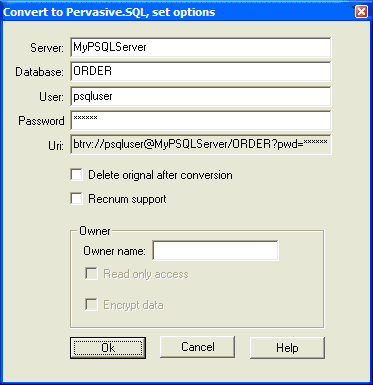
If the driver is configured to operate in database mode, the following panel will appear:
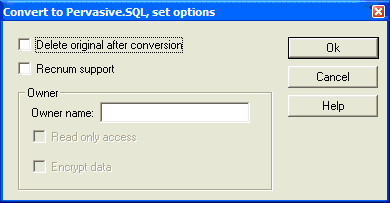
If the driver is configured to operate in non-database mode, the following panel will appear:
URI
When running in database mode, a URI must be specified to determine in which database the converted tables must be created. The Server, Database, User, and Password input forms are used to compose the URI. More information on URIs can be found in Pervasive.SQL Database Mode and Security.
Delete Original after Conversion
When this option has been checked, the original table will be deleted after a successful conversion. If there are errors during the conversion, the table will not be deleted. It is recommended to make a backup copy of all data before starting a conversion.
NOTE: When this option has been selected, the .FD file will be deleted as well. The driver will automatically create a new .FD file when this happens.
Recnum Support
This option controls whether the table will be converted with original Recnum support. Please read Pervasive.SQL Recnum Support about how this option may influence the conversion and the DataFlex programs.
Owner Names
This is the place where an owner can be set for all tables to be converted. When an owner has been set for a table, the table can be protected by either encrypting its data or making the table read-only for applications that do not pass the ID of the owner with the open attempt.
Note that the owner name should be treated like a password. It is independent from the logged-in user name. Refer to the Pervasive.SQL documentation for more information about owner names.
Read-Only Access
When this is checked, Pervasive.SQL will allow applications that do not pass the right owner to open the table for read-only access. When this option is unchecked, it will only allow applications that pass the right owner to open the table. An application that passes the right owner always has full access to the table.
This option is only available when an owner has been set.
Encrypt Data
When this is checked, the data in the table will be encrypted using the specified owner, so the data won’t be readable by applications that just read in the table’s raw data like a text editor.
This option is only available when an owner has been set.
Conversion Process Notes
-
The
flexerrs.dattable anddferrxxx.dattables cannot be converted to Pervasive.SQL. The DataFlex runtime accesses these tables directly without going through a driver. -
When your DataFlex database tables are compressed, the Pervasive.SQL tables will also be compressed. Note that Pervasive.SQL, unlike DataFlex, only has one type of compression, which can be switched on or off.
-
Note that when you look at the indexes using the Pervasive.SQL tools, indexes may be numbered one less than the DataFlex index number. This will happen when the table has been converted without recnum support. When converted with Recnum support, the index numbers will match the DataFlex index numbers because the new
RECIDfield is using Index 0. -
When alias tables are being used (two or more entries in the filelist have the same root name), Database Builder will only convert the first physical table it runs into. Any other entries using the same root name (the aliases) will only have the
.INTextension added to the root name.