Windows Framework 19.0
Windows developers and, by extension, DataFlex Windows applications, can take advantage of the following enhancements:
Improved DPI Awareness
Following recent changes by Microsoft, DataFlex 2017/19.0’s “DPI awareness” is key to making Windows applications look good consistently across a variety of high-DPI displays on the laptop and desktop computers that are typical in today’s business environment.
The font improvements in 17.x already took care of all the text in Windows controls, our controls, and Codejock controls, but Codejock controls did not resize images (images in toolbars and menus did not change) and were not using complete DPI text scaling (font only, not overall spacing).
Updating to a newer version improves the DPI awareness in the Codejock menus and toolbars, but there is also an issue with images; they were all stored in a single 16x16 size. Windows will attempt to virtualize and scale the images on its own, but this often results in images that are not the correct size or blurry.
In a DPI aware application, Codejock and Windows expect you to provide multiple sized images in an icon file and will choose the best size for the current DPI. The goal is to always have the right size image to choose from – no scaling. You can see DPI scaling issues in many Windows applications. This is a process of refinement.
The Windows Framework implements the new Codejock capabilities and automatically selects the best icon size for the DPI setting of the display when using resource icons (compiled in). We replaced all our simple, single-size icons and bitmaps with icons that contain multiple sizes (16x16, 24x24, and 32x32). You may face the same decision about adding icon sizes.
The good news is that if you only use our icons; you’re done! Read more in Windows DPI Scaling and Icon Support.
Flat Style Icons
All of DataFlex 2017/19.0’s menu and toolbar icons are updated to the new, contemporary style that also works perfectly with high DPI displays. All the standard icons used in the DataFlex Windows Framework menu and toolbar are updated and can be found in the \Bitmaps folder.
If you wish to continue to use the old set of bitmaps and icons, they are located in a subfolder (DataFlex 2016 Bitmaps), and you can simply copy them to your workspace Bitmaps folder so they will be found and used first. Read more in Windows DPI Scaling and Icon Support.
Traditional MDI Interface
Microsoft no longer uses the MDI Interface in many of their tools and applications, so they no longer provide complete support for that style. In Windows 10, the MDI views, including the caption and system buttons, are not painted using the appropriate style.
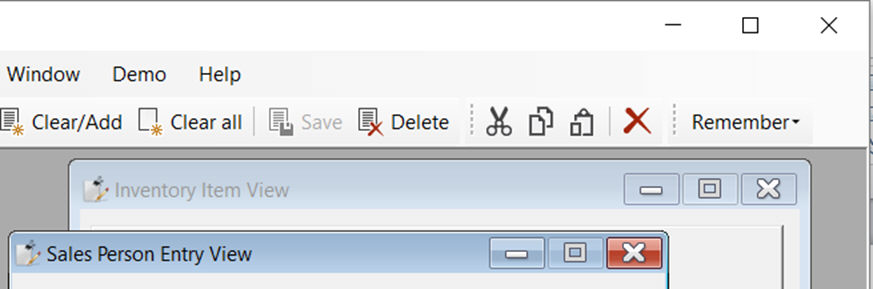
Rather than fight this, we are supporting an alternative look for MDI style applications using Tabbed Workspaces. If you elect to use this new style instead of using overlapping windows, your views are placed in tabs (the Studio has used tabs for many years). Just like the Studio, your application views can be split vertically or horizontally, allowing you to see multiple views at one time. A view is selected by clicking its tab; sizing, centering, and scrolling of tabbed views is fully supported, and it’s all automatic!
The alternative MDI style is created using Codejock Tab Workspaces and DataFlex's scrolling panel class support. Using the alternative MDI style requires code changes:
- Your main application must enable tab-workspaces.
- Each view must add a scrolling panel and scrolling container object.
- In addition, you may want to further customize your views to take full advantage of this new style.
Read more in Tabbed Workspace Interface.
DPI Scaling Support
DataFlex now provides better support for DPI scaling of icons used in CodeJock Toolbars, Menus, and Context Menus. This enhancement for Windows developers is provided by combining changes in the latest CodeJock COM controls with changes to the DataFlex 2017 class library.
DPI Scaling Factors
Windows applies different DPI scaling factors according to the pixel density of your display:
- 96 DPI = 100% scaling
- 120 DPI = 125% scaling
- 144 DPI = 150% scaling
- 192 DPI = 200% scaling
This means that when you run Windows on a monitor with 192 dots per inch, your application (including icons) should be scaled by 200%, i.e., it will occupy twice as many pixels, but the pixel density is twice as high, thus the physical size is unchanged. Without DPI Scaling, your application would look progressively smaller as your monitor pixel density increases.
Scaling Factor and Icon Selection
Windows, and the CodeJock Commandbars, support the ability to display either “small” icons or “large” icons inside toolbars and menus. The actual size of a small or a large icon depends on the Windows DPI scaling factor. When there is no DPI scaling (i.e., 100%), then a small icon is 16x16 pixels and a large icon is 32x32 pixels.
The way that DPI Scaling works with icons is by loading icons of the correct size to match the current scaling factor. The CodeJock command bars simplify the range of icon sizes so that only three sizes are necessary for each icon your application.
The following table shows the mapping between each Windows DPI scaling factor and the icon size that will be selected for CodeJock menus and toolbars:
| DPI Scale | Small Icon | Large Icon |
|---|---|---|
| 100% | 16x16 | 32x32 |
| 125% | 24x24 | 48x48 |
| 150% | same | same |
| 175% | 32x32 | 64x64 |
| 200% | same | same |
Note: The above pertains to toolbars and menu bars, which is where most of the images are used. Images used in other places, such as Codejock’s status bar and tabbed workspace tab button, may use other sized images such as 20x20. In such a case, you should provide those images. Currently, there is a bug with Codejock status bar images causing them to not pick the proper sized image. We have no workaround for this.
For testing, we provide an image named “all.ico” in the bitmaps directory. This contains a unique image for each icon size (it shows the pixel value). You can use this to test the effect of DPI scaling on the different images used in your application.
How to Support Icon Scaling in Toolbars and Menus
- The first thing you need to do is to use Icon files (not bitmaps) for each image in your toolbars and menus. Icon files support embedded icon images of various sizes, and the closest matching size will be automatically selected and applied to your toolbars and menus. Bitmaps (i.e., .bmp files) do not support this.
- Each icon used by your toolbars and menus must now contain at least three different sizes according to the icon size mapping table in the previous section, i.e., if your command bars use small icons, then each icon file must contain 16x16, 24x24, and 32x32 pixel icon images.
- You must set
pbAutoResizeIconstoTruein yourcCJCommandbarSystemobject. This is a new property, and the class default isFalseto ensure that your application will look the same until you are ready to start using DPI scaled icons in your toolbars and menus.
The set of icons provided with the DataFlex Application Framework now contains icons of each size required for DPI scaling. The icons are provided in two sets: a modern "flat" style using few colors and a "3D full color" style. The default set is the modern "flat" set of icons. This comprises the full set of icon images used by our class library and our sample applications. You can switch to the full color icons by copying them into your workspace’s Bitmaps folder. The "full color" icons are located in the “Bitmaps\DataFlex 2016 Bitmaps” subfolder from where you installed DataFlex.
Producing new icon artwork requires some special skills and is generally performed by a graphic artist. However, comprehensive sets of professionally designed icons can be obtained on the Internet at a relatively low cost.
Tabbed Workspace Views
Tabbed workspace views provide an alternate style to the normal MDI view Framework. When used, a workspace tab appears as part of the command bar. As views are activated, a new tab is created for the view. The view itself will appear as a tabbed workspace view. This is very similar to how the Studio shows files when using tabbed workspaces. As the application is resized, the view will resize to accommodate the available client area space.
The view will expand to use the extra space but will be limited in size by setting the view’s piMaxSize property (otherwise views get way too big and stretched). A view can be centered on the client area space. A view can be dragged and split either horizontally or vertically. If a view’s area gets too small, horizontal and vertical scrollbars will appear as needed.
To use scrolling views, you must:
- Set
pbTabbedWorkspacestoTruein yourcCJCommandBarSystemobject. - Views will normally be centered. To disable this, set the
cCJCommandBarSystemobject’spbCenterTabbedViewstoFalse.
At this point, there is basic functionality. To get proper scrolling tabbed workspace views, you need to change your views.
- For each view, you must add a scrolling container (
cDbScrollingContainer/cScrollingContainer) and a scrolling client (cDbScrollingClientArea/cScrollingClientArea) object. These should be placed in your view so they contain all of your visual objects. - Set
piMaxSizeto represent the largest size you want your view to be. Once this size is exceeded, horizontally or vertically, the controls will no longer get bigger (anchoring is disabled). The minimum size of a view (the size before scroll bars are applied) is determined by the Size property.
Object oSalesPersonView is a dbView
    Set Label to "Sales Person Entry View"
    Set Size to 51 245
    Set piMaxSize to 51 245

    Object SalesP_DD is a Salesp_DataDictionary
    End_Object

    Object oScrollingContainer1 is a cDbScrollingContainer
        Object oScrollingClientArea1 is a cDbScrollingClientArea
            Set Main_DD to SalesP_DD
            Set Server to SalesP_DD

            Object oSalesP_ID is a dbForm
                Entry_Item SalesP.ID
                Set Label to "Sales Person ID:"
                Set Size to 13 46
                Set Location to 4 70
                Set Label_Col_Offset to 2
                Set Label_Justification_Mode to jMode_Right
            End_Object

            Object oSalesP_Name is a dbForm
                Entry_Item SalesP.Name
                Set Label to "Sales Person Name:"
                Set Size to 13 156
                Set Location to 20 70
                Set Label_Col_Offset to 2
                Set Label_Justification_Mode to jMode_Right
            End_Object
        End_Object
    End_Object
End_Object
cCJCommandBarSystem
Property Boolean pbTabbedWorkspaces False
Set to True if you want to use tabbed workspace views. If set to true, your views will need to add a scrolling container and scrolling client area object to work properly.
Property Boolean pbCenterTabbedViews True
If True, all scrolling tabbed workspace views will center themselves horizontally and vertically. The behavior for vertical is a modified centering where the centering stops after a small adjustment is made to the top.
Procedure OnCreateTabbedWorkspace Handle hoTabWorkspace Handle hoTabPaintManager
Called when tabbed workspaces are enabled during command bar activation. This can be used to customize the appearance of your tab bar. To do this, you will send COM messages to either the hoTabWorkspace (cCJTabWorkspace) or the hoTabPaintManager (cCJTabPaintManager). You are most likely to call cCJTabWorkspace’s ComFlags or hoTabPaintManger’s ComShowIcons.
cScrollingClientArea / cDbScrollingClientArea
A proper scrolling tab workspace view should surround the view’s visible controls with a scrolling container and a scrolling client area object. The cCJCommandBarSystem object’s pbTabbedWorkspaces should be set to True.
Object oSomeView is a dbView
    Set Size to 146 277
    Set piMaxSize to 175 350
    // insert these objects before any visual controls are created in the view
    Object oScrollingContainer1 is a cDbScrollingContainer
    Object oScrollingClientArea1 is a cDbScrollingClientArea
    End_Object
End_Object
Property Boolean pbTabWorkspaceView False
This is set to True in the scrolling client area when the view is to be used as a tabbed workspace view. Normally, this is determined and set automatically when the object is created (see pbAutoSetTabWorkspaceView), and there is no need to manually set this.
Property Boolean pbAutoSetTabWorkspaceView True
This specifies if the object should attempt to automatically determine if the view is being used as a tabbed workspace view. This determination is made when the object is created. If for some reason, this determination is incorrect, you can set this to False and manually set pbTabWorkspaceView yourself. Hopefully, this will never be needed.
Function CenterTabWorkspaceView Returns Boolean
This is used by the view to determine if it should center tabbed workspace views. By default, it just returns the cCJCommandSystem object’s pbCenterTabbedViews property. By setting this property in the command bar system object, all views will use the same behavior. If for some reason you want a specific view to behave differently, you could augment CenterTabWorkspaceView in the scrolling client area object.
Object oSomeView is a dbView
    Set Size to 146 277
    Set piMaxSize to 175 350
    // insert these objects before any visual controls are created in the view
    Object oScrollingContainer1 is a cDbScrollingContainer
    Object oScrollingClientArea1 is a cDbScrollingClientArea
    Function CenterTabWorkspaceView Returns Boolean
        Function_Return False // never center this one view
    End_Function
    End_Object
End_Object
Note: The tabbed workspace interface uses our standard scrolling container logic, which requires two new objects. When we created scrolling containers, we attempted a design that would be more "automatic" (property based via sub-classing) but determined there was not an effective way to accomplish that. We even considered creating a new C class that contains the Windows object (and Windows needs these extra objects) but that would have created a whole level of confusion about which Windows Handle is associated with a particular DataFlex object. We felt it was best to just make this explicit.